
Folders answer the question “where is this document filed?” Projects answer a different one: “what does this document belong to?” A single deal, matter, or case usually spans several folders — the contract, an NDA, a couple of addenda, the signed final — and a project gathers them in one place without moving any of them. This guide covers what projects are, how they differ from folders, and how to put them to work.
Projects vs folders
The two are complementary, not competing. Every document lives in exactly one folder — its filing location. A project sits on top of that: a grouping that can pull in documents from any folder, and a document can belong to several projects at once. Nothing is duplicated or relocated; a project simply references the documents that belong to it.
| Folders | Projects | |
|---|---|---|
| Answers | Where a document is filed | What engagement it belongs to |
| Membership | One folder per document | Many projects per document |
| Spans folders | No | Yes |
| Effect on the file | It lives there | Only groups it — never moves it |
Create a project
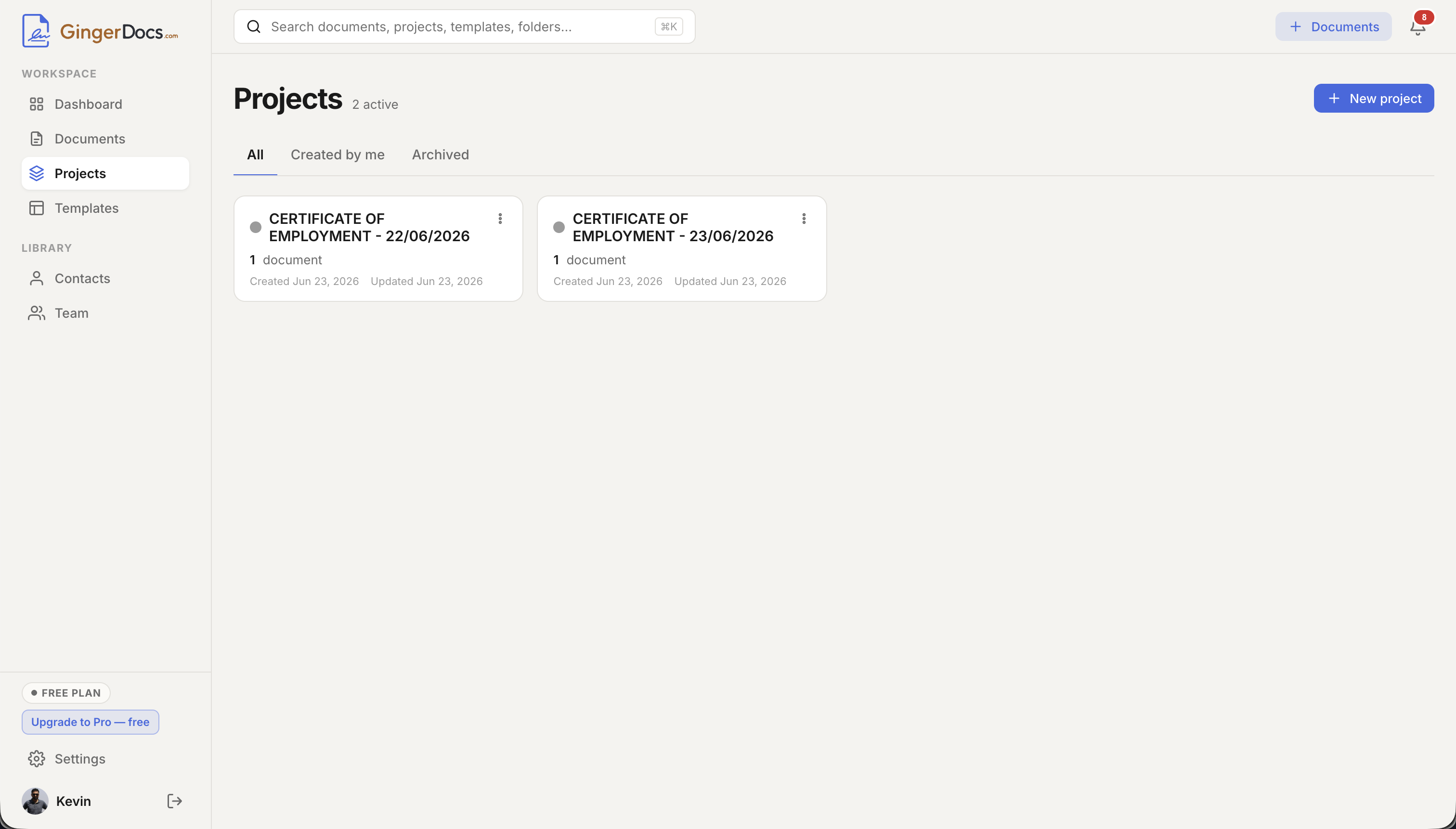
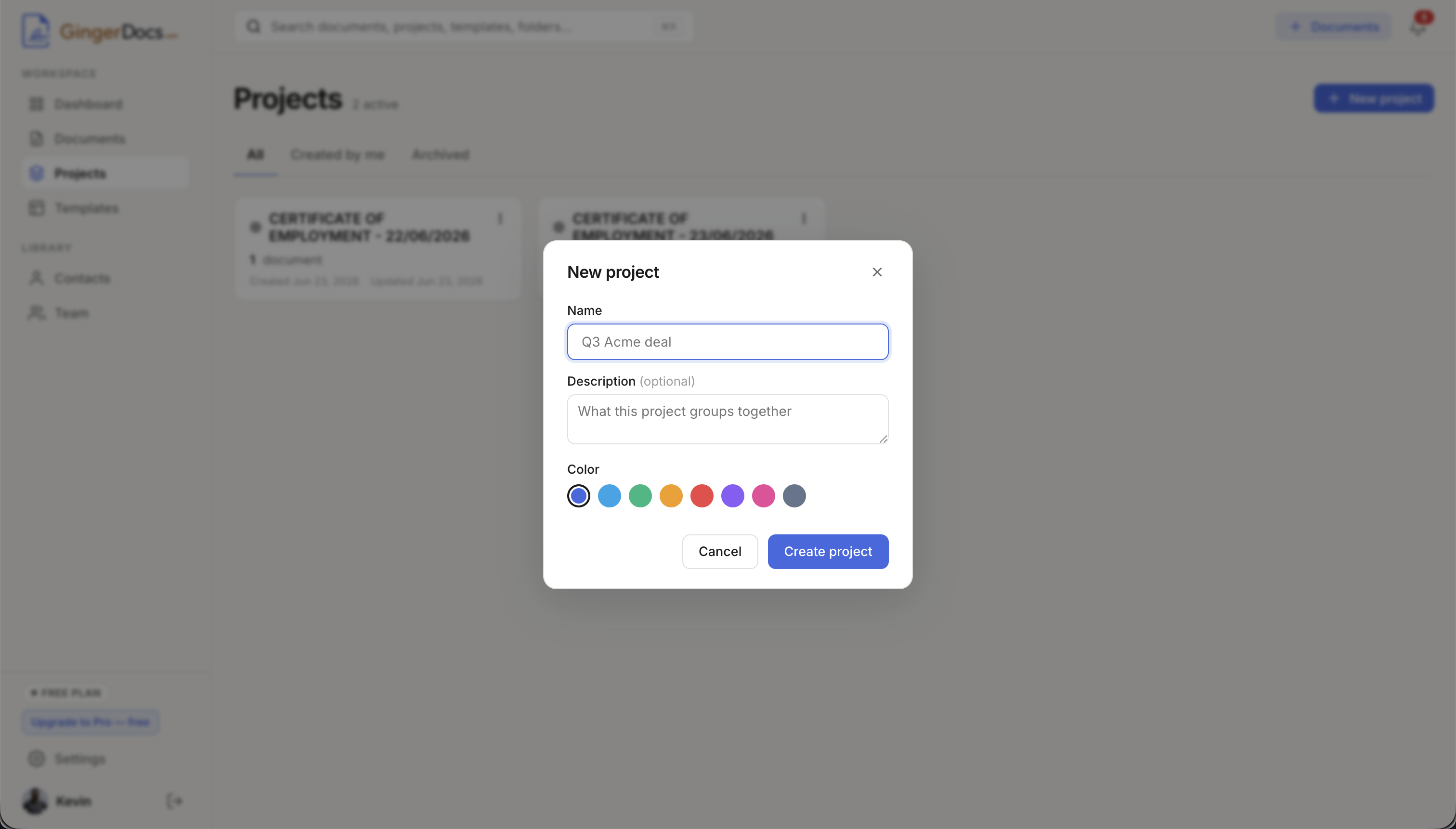
Open Projects from the sidebar and click New project. Give it a name (“Q3 Acme deal”), an optional description of what it groups together, and a colour so it is easy to spot. In a team workspace you also pick its access: Team makes it visible to everyone in your organization, while Only me keeps it private to you. The library then lists your active projects — each card showing its colour, document count, and access — with tabs for All, Created by me, and Archived.
Add documents — from either side
A document joins a project from whichever side is convenient, and the two approaches meet in the middle.
From the project: open it and click Add documents, search by title, tick the ones you want, and add them in a batch. From a document: open the document’s actions menu and choose Add to project, then tick one or more projects. The second route is where a document’s membership in several projects is set — select as many as apply, since a document can live in more than one project at once.
Work inside a project
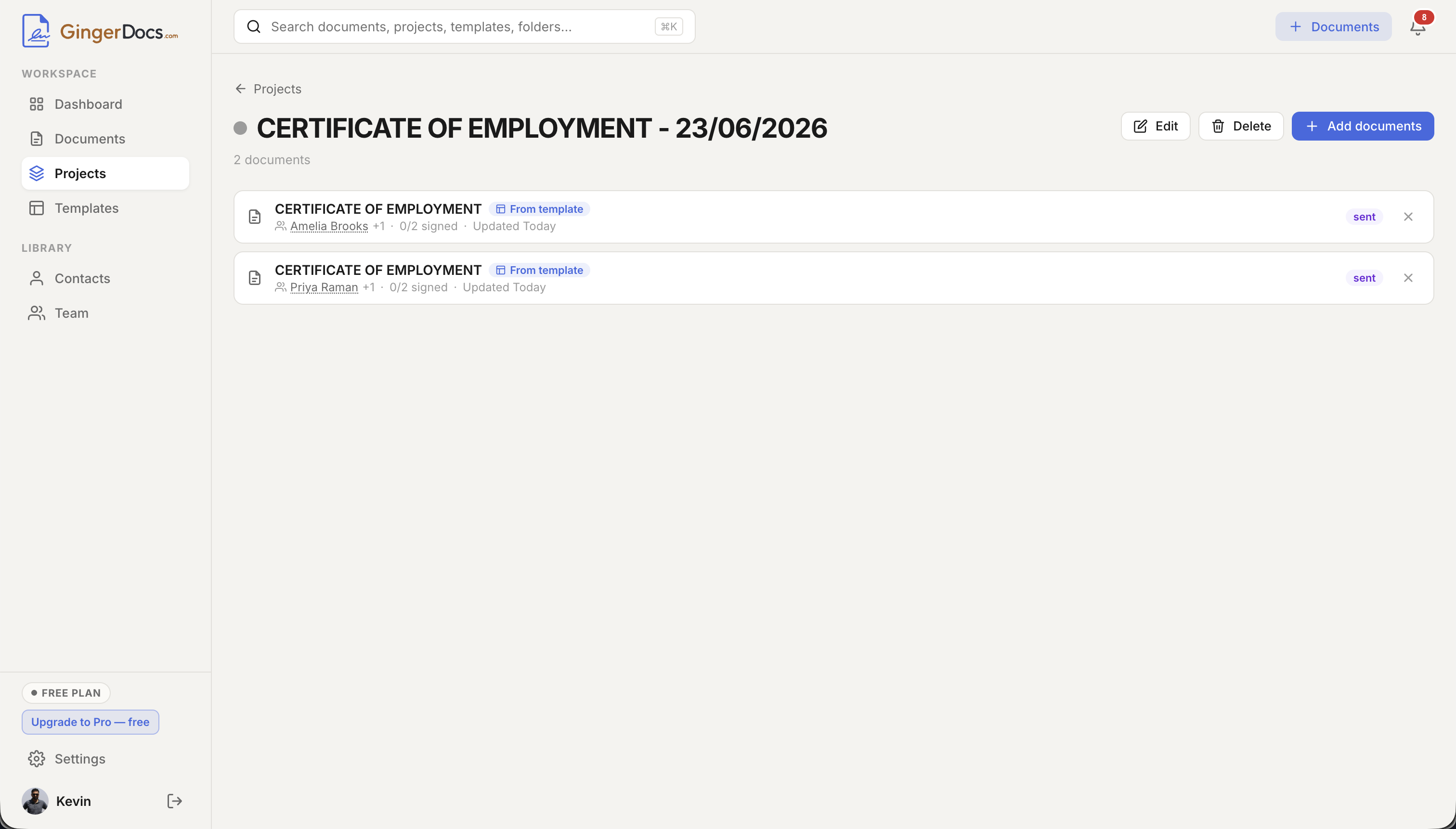
Opening a project shows everything grouped under it as a single list. Each row carries the document’s recipients, its live signing progress (for example, “2/3 signed”), its current status, and a From template chip when it was generated from one. Open any document from here and Back returns you to the project rather than the main documents list, so you can move through a deal without losing your place.
Tidying up is non-destructive. Removing a document from a project — the × on its row — takes it out of the grouping only; the document itself is untouched and stays in its folder. Documents created by a bulk send run are grouped into a project automatically, so a whole batch lands together without any manual filing.
Visibility and access in a team workspace
When you work in a team workspace, each project has an access setting. Team projects are visible to everyone in your organization; a teammate viewing one you created sees a “Shared with you” label. Only me projects stay private to you, marked with a small lock. The person who created a project manages it — editing its details, archiving, or deleting it — while anyone with access can open it and add documents.
Archive, delete, and what happens to your documents
When an engagement wraps up, use the project’s actions menu to Archive it, moving it out of your active list into the Archived tab — you can unarchive it later. Deleting goes further, but safely: it removes the grouping only. As the confirmation spells out, the documents inside a deleted project are not deleted; they stay exactly where they were filed. Throughout, small project chips appear on document rows, so you can always see which projects a given document belongs to.
Quick reference
| I want to… | Where |
|---|---|
| Create a project | Sidebar → Projects → New project |
| Add documents to a project | Open the project → Add documents |
| Put one document in several projects | Document → actions menu → Add to project |
| Remove a document from a project | Project → the × on the document’s row |
| Keep a project private (team workspace) | Project form → Access → Only me |
| Retire a project | Projects → card actions menu → Archive |
| Delete a project (documents kept) | Project → Delete → Delete project |
Projects are the lightest possible layer over your documents: no moving, no copying, just a way to see everything for one matter, deal, or case together. For the rest of the workspace around them — folders, contacts, and teams — see organizing your workspace; to have whole batches grouped into a project automatically, see templates and bulk send.